

Designing a Browser Extension using AI and Machine Learning; A Guide

Introduction
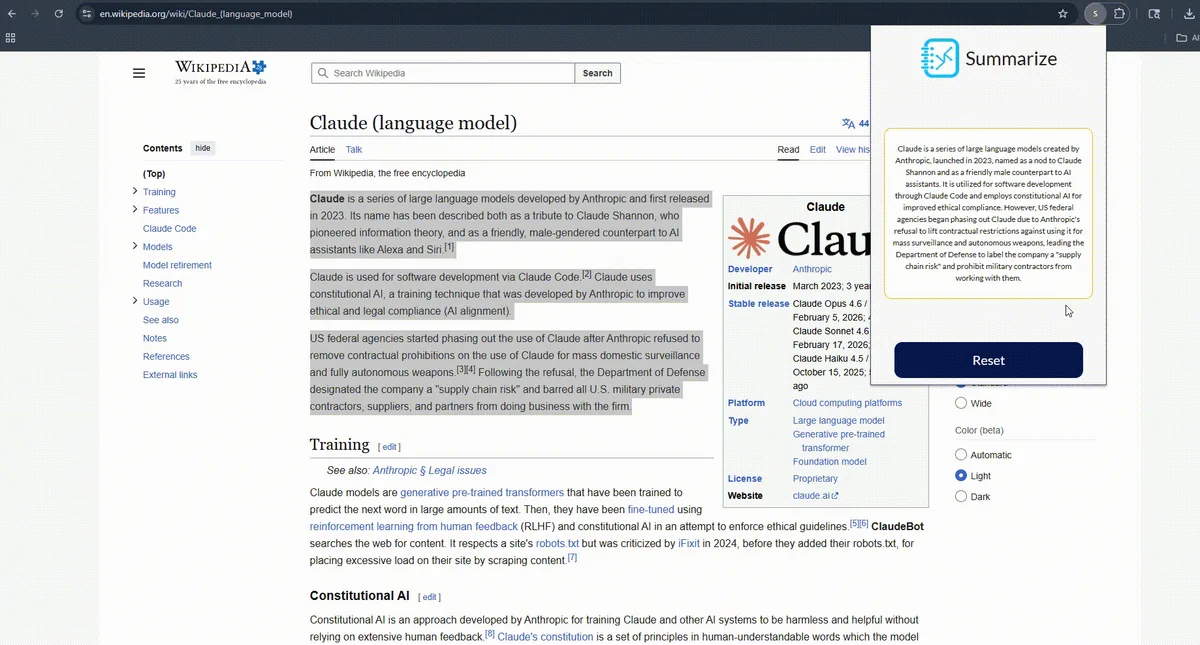
Anyone who's used a browser has likely come across extensions — whether for grammar checking, ad blocking, or countless other uses — and quickly discovered how valuable they can be. With AI's recent rise in popularity, a natural question follows: can these two technologies be combined to bring AI's capabilities directly into the browser? The answer is yes, and that's exactly what we'll explore today — how to build your own AI-powered browser extension. We'll first begin by looking at the general structure of an extension, as well as the API we will be utilizing, then followed by more detailed looks at the three main parts of the extension in the form of examples of code, as well as how we will be interfacing with the API used for this project. After that, we will build our request, and then show an example of its use in the extension.
Extension Anatomy
The first of three major components is the manifest file, which serves as the foundation of your extension. Stored in the root directory as "manifest.json," it defines the extension's structure and function — covering everything from its description and version to its permissions and whether it uses content scripts or service workers.
Next is the content script, stored in the root as "content-script.js." This script runs within the context of the currently viewed web page, allowing it to interact with the page's DOM and pass information along to the service worker and extension.
The third component is the service worker, stored in the root as "background.js." Unlike the content script, which operates at the page level, the service worker acts as a central background event handler for the extension, operating within the broader context of the browser itself.
Finally, the element more specifically related to our use case today is the OpenAI API. For each piece of text selected for summarization, a request containing that text is sent through the API, which returns the summarized result.
Manifest File
{
  "manifest_version": 3,
  "name": "Sample AI Chrome Extension",
  "version": "1.0.0",
  "description": "A sample chrome extension built using AI and ML that allows users to summarize text",
  "permissions": [
    "storage",
    "activeTab",
    "background",
    "tabs",
    "webNavigation"
  ],
  "background": { "service_worker": "service-worker/service-worker.js" },
  "content_scripts": [
    {
      "js": ["content-script/content-script.js"],
      "matches": ["<all_urls>"],
      "run_at": "document_end"
    }
  ],
  "action": {
    "default_popup": "index.html",
    "default_title": "Sample AI Chrome Extension"
  }
}
As previously noted, the manifest file is the most important piece of our extension, providing Chrome with everything it needs to make it function.
The file opens with a handful of straightforward descriptors — manifest_version, name, version, and description — that identify the extension to Chrome.
Next is the permissions array, where you declare exactly what capabilities your extension will need. Want to access Chrome's local storage? You'll need the storage permission. Building a context menu? You'll need contextMenus. A full list of available permissions can be found Chrome extension permissions reference.
Following that, the manifest defines the content script and service worker through their respective objects. Worth noting: in Manifest V2, the service worker was called the background script — which is why the property is still labeled "background" today. For the service worker, the only thing being defined is its file location. For the content script, you additionally specify which URLs it activates on (in our case, all URLs) and when it runs (in our case, at document end). One critical detail here is that the file paths referenced in the manifest should point to your built output — for example, after building with a tool like Webpack or Vite, these files will live somewhere like dist/service-worker/service-worker.js and dist/content-script/content-script.js.
Finally, the action property defines how the extension appears in the Chrome toolbar. The default_popup field points to the extension's UI, while default_title sets its toolbar title.
Content Script
document.addEventListener("mouseup", () => {
  const selectedText = window.getSelection().toString().trim();

  if (selectedText.length > 0) {
    chrome.runtime.sendMessage(
      {
        type: "SELECTED_TEXT",
        payload: selectedText,
      },
      (response) => {
        console.log(
          "Content Script received response from service worker",
          response
        );
      }
    );
  }
});
The content script's job is to collect information from whatever page the user is on, pass it to the service worker, and ultimately get it back to the extension to be used. In our case, that means listening for the user to select text, capturing that selection, and sending it upstream.
For our use case, we achieve this by attaching a mouseup event listener to the page, grabbing the selected text, and passing it to the service worker using chrome.runtime.sendMessage(), which follows this structure:
chrome.runtime.sendMessage({type: "MESSAGE_NAME_HERE", payload: dataIWantToSend}, (response) => {...});The type field acts as an identifier, allowing the recipient to recognize and handle the message appropriately. The payload is the data being sent upstream — in our case, the selected text. The optional callback passed as a second argument to sendMessage() receives the response returned by whichever component handled the message, whether that's the service worker or the extension itself.
Service Worker
chrome.runtime.onMessage.addListener((message, sender, sendResponse) => {
  if (message.type === "SELECTED_TEXT") {
    console.log("Received selected text from content script");
    chrome.storage.local.set({ selectedText: message.payload }, () => {
      sendResponse({
        status: "Service worker received selected text",
        length: message.payload.length,
      });
    });

    return true;
  } else if (message.type === "GET_SELECTED_TEXT") {
    console.log("Received get selected text request from SummarizeOptions");
    chrome.storage.local.get("selectedText", (result) => {
      sendResponse({
        status: "Service worker sent selected text to button on extension",
        content: result.selectedText,
      });
    });

    return true;
  }
});
Inside the service worker, we receive the message from the content script and process it before the extension requests it. The core of this file is onMessage.addListener(), which watches for incoming messages and exposes three parameters: message, an object containing the message and its associated data; sender, an object describing who sent the message (in our case, the content script); and sendResponse, which is used to send a reply back to the sender.
In our service worker, when a message arrives we check its message.type — either "SELECTED_TEXT" or "GET_SELECTED_TEXT". When the type is "SELECTED_TEXT", we verify it and store message.payload in Chrome storage under the key "selectedText", rather than in a local variable. This is necessary because service workers are ephemeral — when idle, they effectively shut down and lose any state they were holding. Saving to Chrome storage ensures the text is retrievable later, rather than lost.
Once stored, sendResponse is called to acknowledge receipt back to the content script. Finally, returning true at the end of the listener is essential — it keeps the message channel open for asynchronous operations. Without it, any async work attempted after the listener closes will throw an error.
The second onMessage listener mirrors the first in structure, except instead of writing to Chrome storage, it reads from it and forwards the result to the extension for use.
API Request File
const apiKey = import.meta.env.VITE_OPENAI_API_KEY;

if (!apiKey) {
  throw new Error(
    "VITE_OPENAI_API_KEY is not defined in environment variables"
  );
}

export function summarizeText(text) {
  return fetch("https://api.openai.com/v1/chat/completions", {
    method: "POST",
    headers: {
      "Content-Type": "application/json",
      Authorization: `Bearer ${apiKey}`,
    },
    body: JSON.stringify({
      model: "gpt-4o-mini",
      messages: [
        {
          role: "user",
          content: `Summarize the following text: ${text}`,
          temperature: 0.7,
        },
      ],
    }),
  })
    .then((response) => {
      if (!response.ok) {
        throw new Error(`Response failed: ${response.status}`);
      }
      return response.json();
    })
    .then((data) => {
      console.log("Summary:", data.choices[0].message.content);
      return data.choices[0].message.content;
    })
    .catch((error) => {
      return console.error(`Error: ${error}`);
    });
}
The file opens by retrieving the API key from the .env file and verifying it exists before proceeding.
From there, we construct the request itself. Like any REST API call, the familiar components are present: an endpoint (OpenAI's available endpoints can be found OpenAI API reference), a method, and headers — including an authorization header using the API key, written as the template literal `Bearer ${apiKey}`. One important note: the fetch call should be preceded by return, otherwise asynchronous chaining won't work as expected.
The request body is serialized as JSON, as required by the API, and contains a few key fields. The model key defines which model to use. Inside the messages array, we define the role of the requester and the content, which is the prompt sent to the model. Keep in mind that while our example prompt is intentionally simple for readability, production use warrants prompt engineering in order to create a strong prompt — one that's been tested against attempts to redirect the model away from its intended purpose. Also included is temperature, a value between 0 and 1 that controls response variability: lower values produce more deterministic outputs, while higher values introduce more randomness.
Finally, a then chain follows the request to handle the response, catching unhandled exceptions and extracting the relevant content from the response object via data.choices[0].message.content.
Example Request in Extension
const handleSelectText = () => {
    setLoading(true);
    chrome.runtime.sendMessage({ type: "GET_SELECTED_TEXT" }, (response) => {
      summarizeText(response.content).then((summary) => {
        onSummarize(summary);
        setLoading(false);
      });
    });
  };
With the request built, the last step is wiring it into the extension itself. Recall that the service worker was set up to listen for the "GET_SELECTED_TEXT" message type — this is where we send that message to retrieve the selected text. Once received, the text is passed as an argument to the summarizeText function, and the resulting summary is handled in a then chain. From there, it can be used however needed — in our case, it's sent to the extension and rendered in the popup.
Conclusion
With everything we've covered, you now have all the foundational knowledge needed to build your own AI-powered browser extension. The problem we solved today was intentionally simple, but the underlying principles apply to whatever use case you have in mind. If you'd like to see the project in which this code was implemented, you can find it sample AI Chrome extension on GitHub.
Going forward, this blog will continue to grow — covering new features like LangChain integration and context menus, and following the extension's full lifecycle through to publishing on the Chrome Web Store. In the meantime, the team at Software Sushi will keep publishing more guides like this one, and we hope you find them useful!
Where to go next
The extension in this guide sends selected text to a hosted model. Before you ship something similar to real users, compare approaches in RAG vs. fine-tuning: how to actually choose, and read building a recipe assistant with AI for a retrieval-based assistant built on the same OpenAI API.
If you want help turning a browser prototype into a product, see our AI integration services and AI pilot to production work.